Source / Target picking
Select the two meshes directly in 3ds Max. Clear resets the selection.
ai2tex bakes Diffuse / Base Color from an original model onto a retopologized target using the target's existing UV layout.
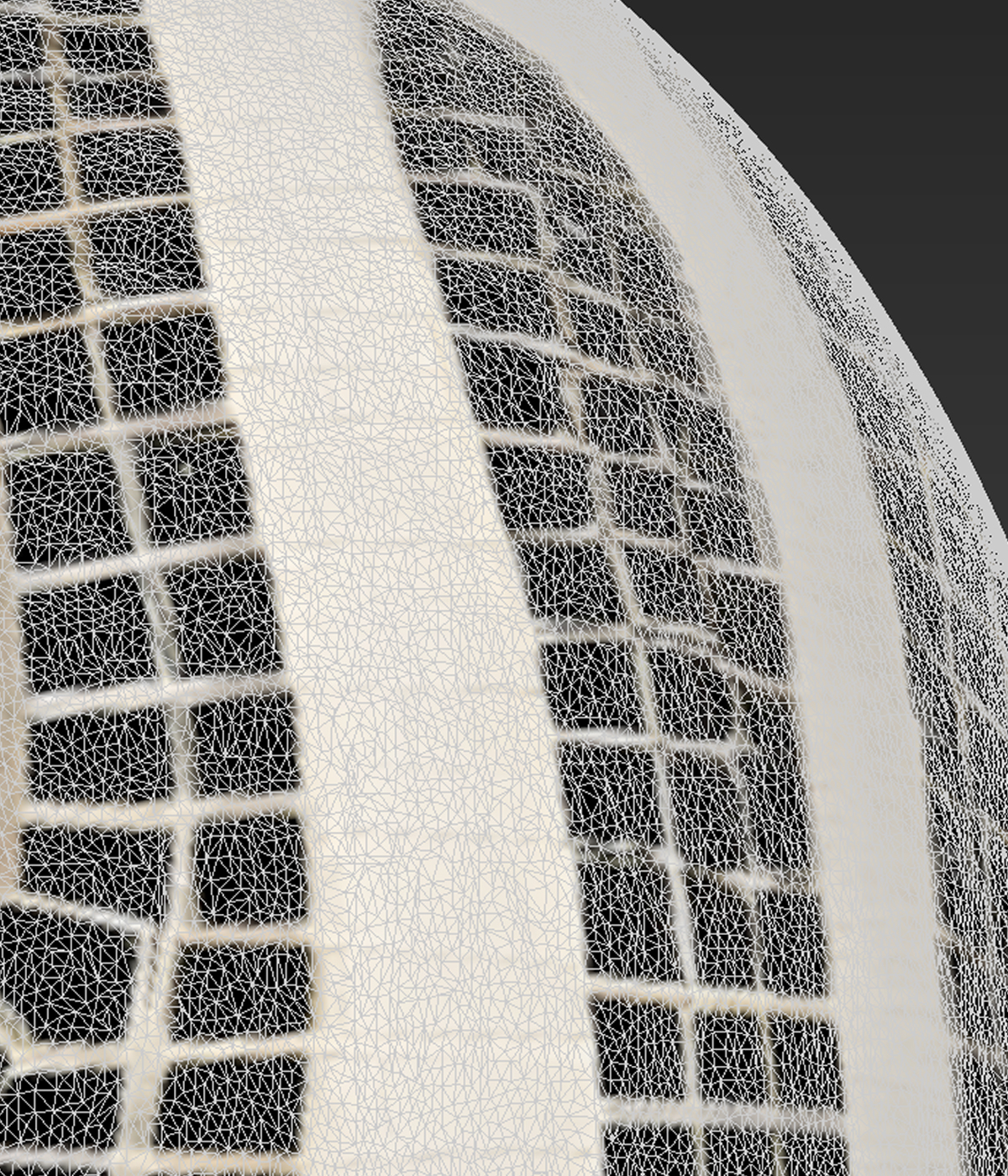
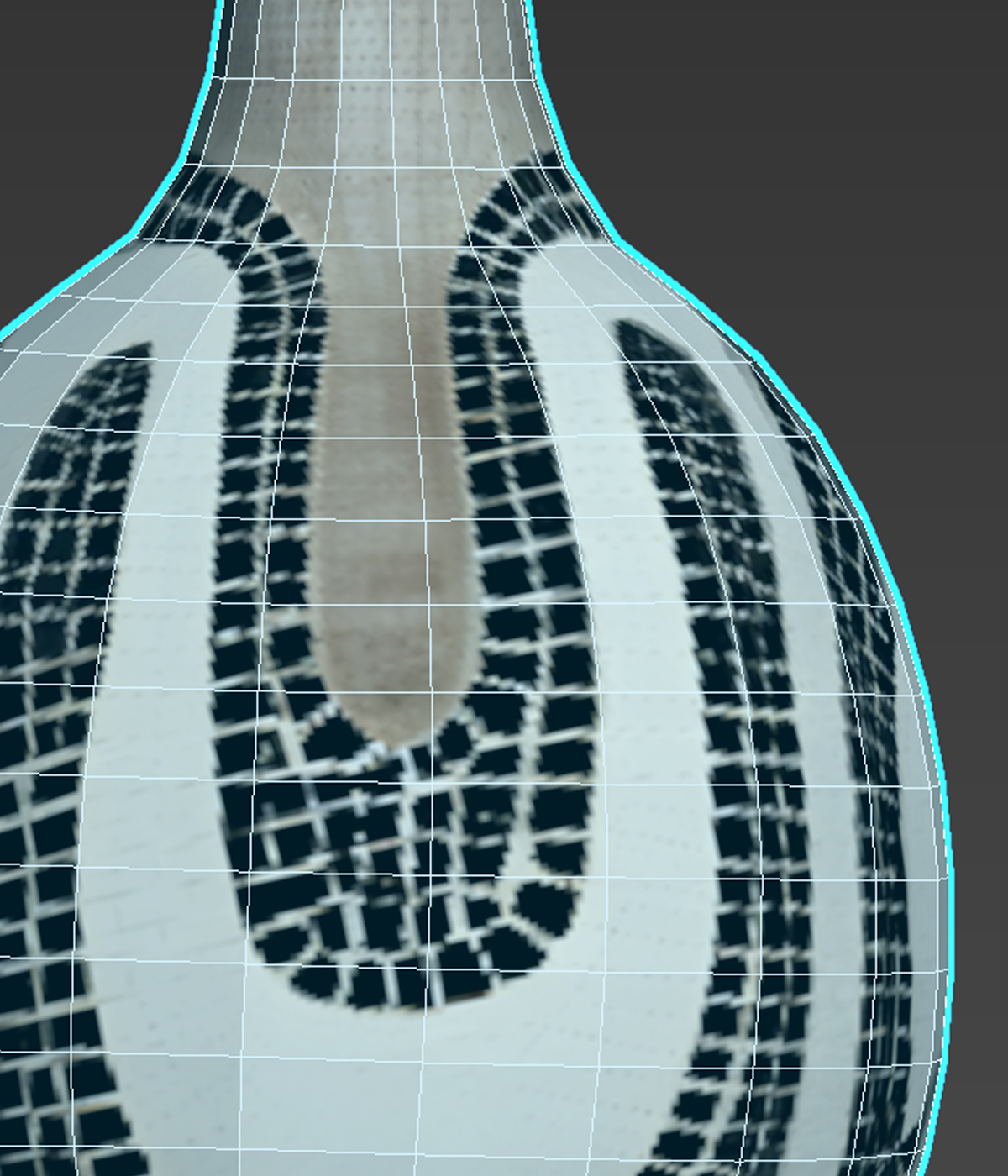
AI-generated models from tools such as Hunyuan or Tripo can arrive with a mosaic-like UV layout and a difficult-to-work-with mesh. After retopology and a new UV unwrap, the original texture no longer fits the new model.
ai2tex automates the built-in 3ds Max Projection + Render To Texture workflow. It sets up the projection, handles the temporary scene changes, bakes the color and cleans up afterwards.
The tool is intentionally focused: one Source, one Target, one Diffuse / Base Color bake at a time.
Select the two meshes directly in 3ds Max. Clear resets the selection.
ai2tex calculates a starting value from the object's size. Fine-tune it when needed.
The selected Target UV channel is checked and the script can report where an existing unwrap is found.
Temporary Projection, material and renderer changes are restored after the bake.
The current version is deliberately limited to Diffuse / Base Color. Geometry and UVs are not changed.
The Target keeps its existing geometry and UV layout. A new Standard Material can be assigned to the Target after baking.
PNG is the default. JPG is baked at quality 100 for the operation. TGA is also available.
Choose a square output texture size from 512, 1024, 2048, 4096 or 8192.
The output is saved beside the first found Source texture when possible, using the _TexBake suffix.
Existing files are never overwritten. Repeated bakes receive _1, _2, and so on.
Replace these visual placeholders with your real before/after screenshots when you are ready.
No account and no email are required to download the free tool.
Download ai2tex ↓Leave your email only if you want a notification when a new tool or major product is released. No regular newsletter.
If it saves you time, you can support the development of free tools by following on Instagram.
Installation, workflow, parameters, supported materials, output rules, troubleshooting and known limitations.